 CapaOne
This guide explains how to reenroll an Apple device in CapaOne Mobile Manager.
By the end, you will know how to reenroll a device either with or without retaining its previously assigned apps, groups, and configurations.
Prerequisites
Before re-enrolling a device, ensure you have:
- Access to the device
- Access to CapaOne Mobile Manager
Configuration / Steps
Reenrolling a Device Without Existing Apps and Configurations
Use this method if you want the device to be treated as a completely new enrollment with no links to previous apps, groups, or configuration policies.
- Locate the device in CapaOne Mobile Manager.
- Open the device page.
- Click the three dots (action menu).
- Select Request → Wipe.
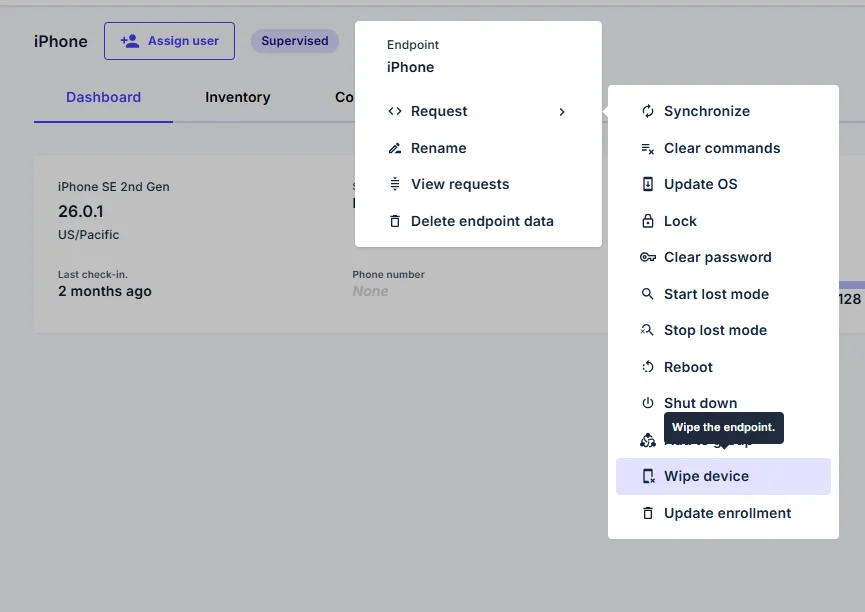
The device will reset to factory settings.
When it is enrolled again, it will be treated as a clean installation with no previous MDM associations.
Reenrolling a Device with Existing Apps and Configurations
Use this method if you want the device to reenroll and automatically re-link to the same groups, applications, and configurations as before.
- On the device, go to:
Settings → General → Transfer or Reset iPhone/iPad - Tap Erase All Content and Settings.
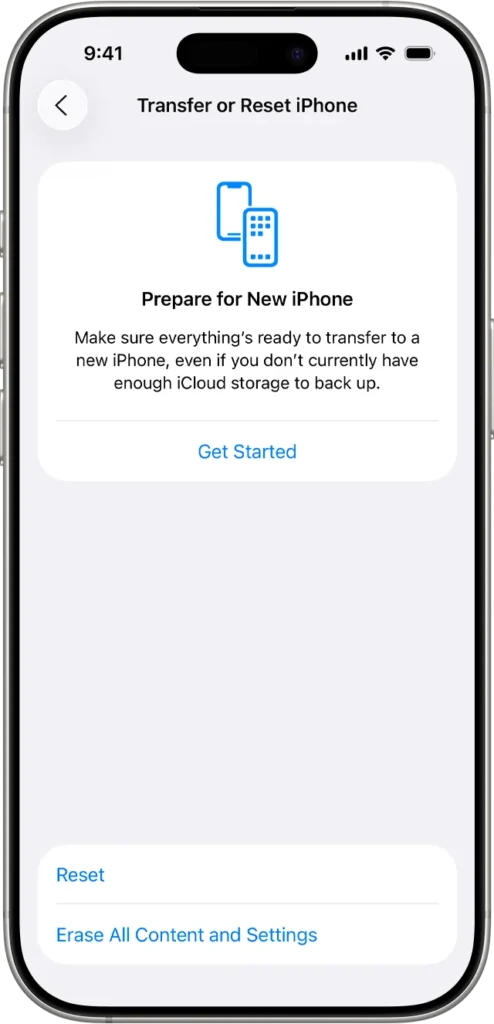
The device will reset.
After going through the enrollment process again, it will automatically reconnect to:
- The same groups
- Previously assigned apps
- Existing configurations
Maintenance & Best Practices
- Use Request → Wipe when you want a completely fresh start without any inherited policies.
- Use Erase All Content and Settings when you want to preserve previous app/config associations.
- For DEP devices, ensure that the correct default enrollment configuration is active in CapaOne.
