 CapaOne
CapaOne Mobile Manager enables organizations to centrally manage iPhones and iPads across both corporate and BYOD environments.
This guide explains how to set up iOS device management from the ground up, including the Apple Push Certificate, Apple Business Manager integration, enrollment profiles, and app distribution through VPP.
By the end, you will be able to:
- Enroll devices into Mobile Manager
- Automatically configure corporate-owned (DEP) devices
- Securely distribute apps and configurations
Before starting, make sure you have:
- A CapaOne account with Mobile Manager License
- Apple ID (create one dedicated Account not tied to a personal user)
- Access to Apple Business Manager (ABM) or Apple School Manager (ASM)
- Internet access for both devices and the management console
Prerequisites
- A CapaOne account with Mobile Maneger License
- Apple ID (create one dedicated Account not tied to a personal user)
- Access to Apple Business Manager (ABM) or Apple School Manager (ASM)
- Internet access for both devices and the management console
Configuration / Steps
Apple Push Certificate Setup
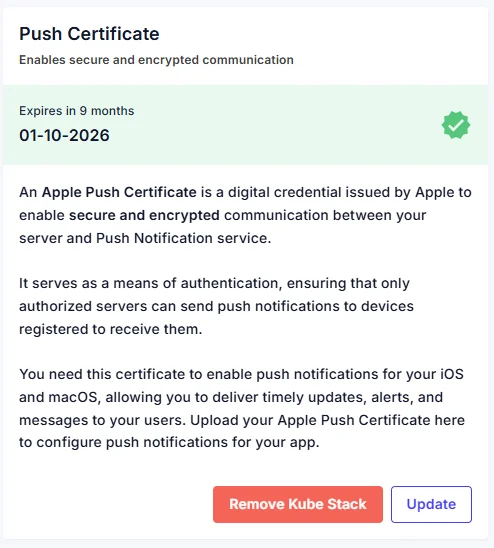
Apple Push Notification Service (APNs) is required for Mobile Manager to communicate with iOS devices.
Without it, no management commands can be sent.
- Steps:
- Log in to the CapaOne portal.
- Navigate to Apple Setup → Push Certificate.
- Click Download this Push Request and save the file.
- Open the Apple Push Certificates Portal: https://identity.apple.com/pushcert
- Sign in with your Apple ID.
- Create a certificate, upload the Push Request file, and download the issued .pem file.
- Upload the certificate into CapaOne.
- Confirmation
The certificate status should show Active with an expiration date.
- Important
Renew the certificate every 12 months using the same Apple ID.
Apple Business Manager (DEP) Integration
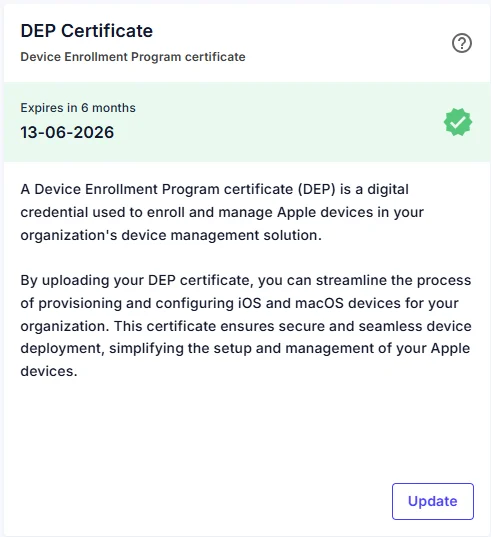
The Device Enrollment Program (DEP) is part of Apple Business Manager and allows devices to automatically enroll into Mobile Manager during initial setup.
- Steps:
- In CapaOne, go to Apple → Certificates → DEP Certificate → Update.
- Download the Public Key.
- In ABM, go to Settings → MDM Servers → Add MDM Server.
- Upload the public key and name the server (e.g., “CapaOne Mobile Manager”).
- Download the generated server token (.p7m).
- Upload the token into CapaOne under DEP Token → Upload.
- Confirmation
CapaOne Mobile Manager is now linked with ABM.
- Assign Devices in ABM
- In ABM, go to Devices.
- Select device(s) → Assign Device Management → assign to the CapaOne MDM server.
- Result
Devices now automatically enroll into Mobile Manager when activated or reset.

Volume Purchase Program (VPP) Apps and Books
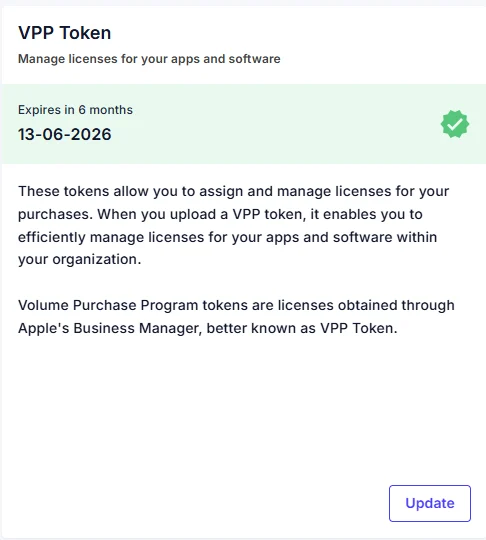
A VPP token links Apple Business Manager with Mobile Manager.
It enables silent distribution of apps without requiring Apple IDs.
- Steps:
- In CapaOne, go to Apple → Certificates → VPP Token → Update.
- In ABM, go to Preferences → Payment and Billing and download the .vpptoken.
- Upload the token into CapaOne.
- Confirmation
VPP is now successfully linked.
- Purchase Apps in ABM
- Go to Apps and Books in ABM.
- Search and purchase apps.
- Assign licenses to the correct organization location.
Groups, Configurations & Apps
- Groups
- Go to Management → Groups → New.
- Create a group for Supervised devices.
- Create a second group for Unsupervised devices.
- Groups can have configurations and applications assigned.
- Info you can use this whit the Enrollmet profile for automated linkning
- Configurations
- Go to Apple → Configurations → New.
- Create a Supervised configuration.
- Create an Unsupervised configuration.
- Assign each configuration to the matching group.
- Apps
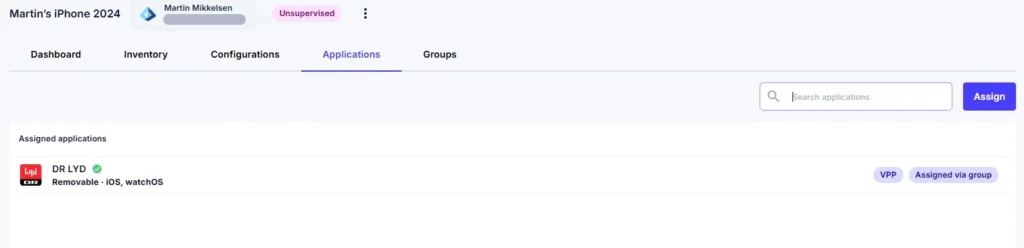
- Go to Apple → VPP Licenses.
- Click the settings for a VPP-licensed app → Create application.
- Assign the application to the appropriate group.
- Result
The app is delivered automatically to the device.
Enrollment
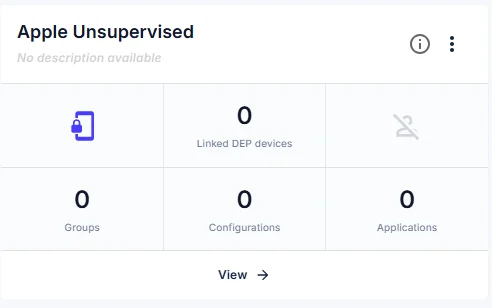
Unsupervised Profile (BYOD)
- Go to Apple → Enrollment → New.
- Add name and description.
- Add groups, configurations, and apps.
- Save the profile.
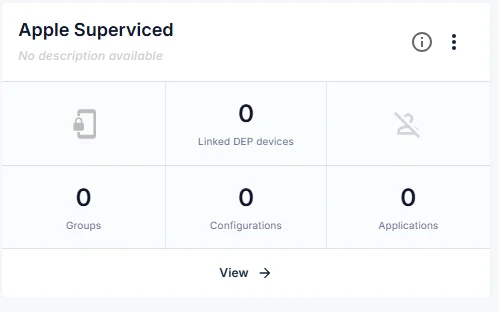
Supervised Profile (Corporate)
- Go to Apple → Enrollment → New.
- Add name and description.
- Add groups, configurations, and apps.
- Under DEP Enrollment Profile, choose authentication method.
- If Azure AD integration is not enabled → select No user authentication.
- Enable Skip items and select all.
- Set this profile as default DEP.
Unsupervised Devices (BYOD)
- On the device, open the enrollment URL or scan the QR code.
- Download the profile.
- Install via Settings → General → VPN & Device Management.
Result
The device appears in Mobile Manager.

Supervised Devices (ABM/DEP)
- Assign the device in ABM to the CapaOne server.
- Reset or unbox the device.
- During setup, the device auto-enrolls into Mobile Manager.
- Sign in with user credentials (if Azure AD is enabled).
Result
The device is supervised and fully managed with zero manual steps.

The device will reset.
After going through the enrollment process again, it will automatically reconnect to:
- The same groups
- Previously assigned apps
- Existing configurations
Maintenance & Best Practices
- Renew the Apple Push Certificate annually using the same Apple ID.
- Renew ABM/DEP and VPP tokens yearly.
- Separate BYOD and corporate profiles.
- Use DEP for all corporate device purchases.
- Review compliance regularly.
- Remove unused devices or licenses.