 CapaOne
This guide explains how to migrate Apple devices DEP-enrolled, running iOS 16 or higher) from your current MDM solution—such as CapaInstaller or another provider— in CapaOne Mobile Manager.
By the end, you will be able to prepare your CapaOne environment, assign devices to the new MDM server in Apple Business Manager, and verify migration of all eligible devices.
Prerequisites
Before starting, make sure you have:
Devices enrolled in Apple Business Manager Apple School Manager (ABM(ASM)
Devices running iOS 16 or higher (Apple requirement)
Access to ABM/ASM for both your current MDM server and CapaOne
Your desired apps, profiles, and configurations prepared in CapaOne
A default DEP enrollment configuration (recommended)
Tips before migrating:
- Start the migration by migrating a single device and ensuring that your setup in CapaOne matches your desired requirements before migrating a large number of devices.
- All configurations and apps will stay on the device after migration. They will only be overwritten when new configurations and apps of the same type are applied in CapaOne.
- For a guide on DEP setup, see: How to – CapaOne MDM – DEP enrollment
Configuration / Steps
1. Plan Your Migration
1.Inventory Devices in Your Current MDM
Note the following:
- Device models
- iOS versions
- Which devices are Supervised or Unsupervised
2.Communicate with Your Users
Users will receive prompts during migration. Inform them in advance.
3.Ensure Apple Business Manager Access
You must have access to the ABM account connected to both the old MDM server and the CapaOne MDM server.
4.Test with a Single Device
Before migrating at scale:
- Migrate one device or enroll one device directly into CapaOne
- Verify that apps, Wi-Fi profiles, VPN, email, restrictions, and other settings behave as expected
2. Prepare CapaOne for Migration
1.Recreate Assets in CapaOne
Review configurations and applications applied in your current MDM setup and recreate equivalents in CapaOne.
For general Apple setup in CapaOne, see:
Getting started – CapaOne Apple
2.Create a Default Enrollment Configuration (Recommended)
- Navigate to Enrollment.
- Create a new enrollment configuration.
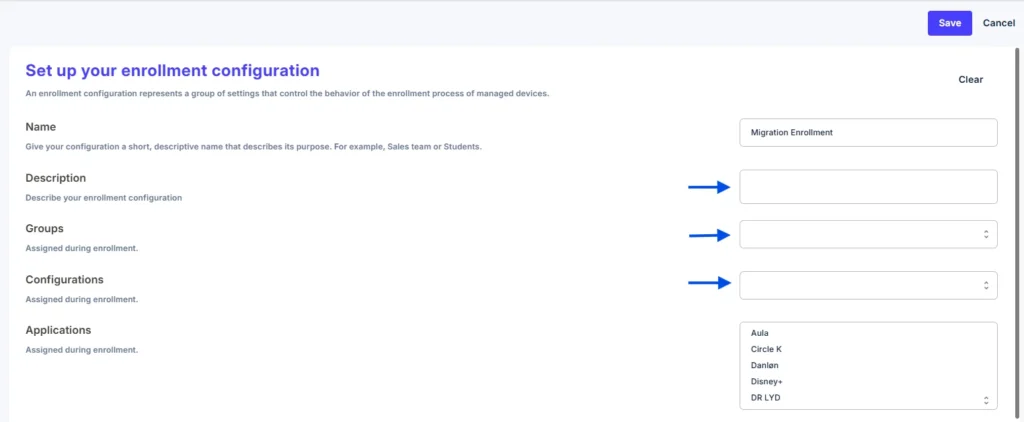
3.Add required applications
Select apps to be automatically installed after migration.
4. Add required configurations
Such as:
- Wi-Fi profiles
- VPN
- Email settings
- Restrictions
- Other policies needed after enrollment
5. Assign groups
Link groups to ensure apps and policies deploy immediately after enrollment.
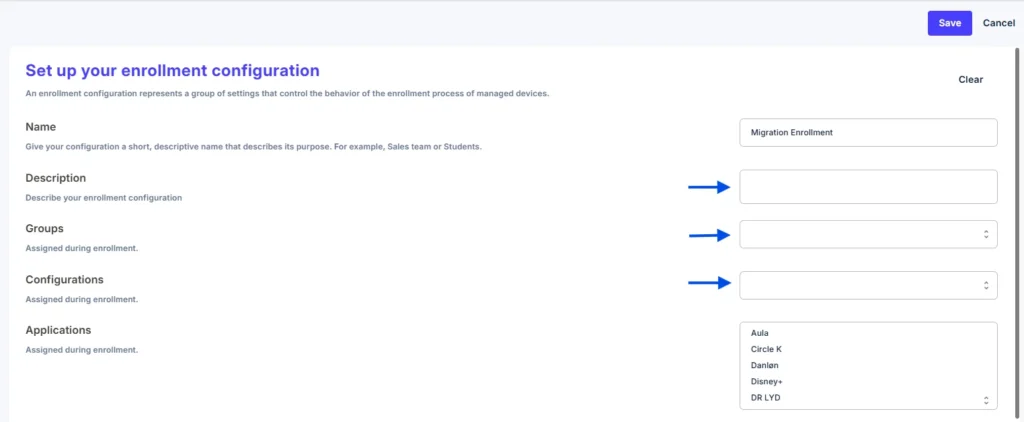
6. Save and verify the configuration.
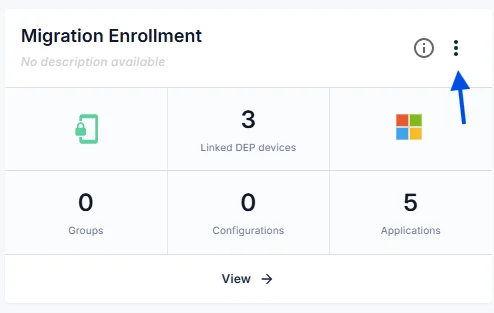
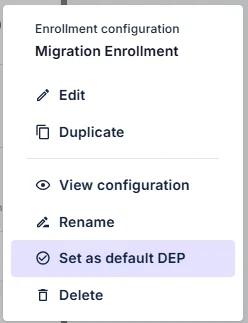
3.Set as Default DEP Enrollment Configuration
Mark the new enrollment configuration as default for DEP devices.
This is done from the action menu on the enrollment profile.
3. Migrate Devices to CapaOne
- Log in to Apple Business Manager and navigate to Devices.
- Search and select devices to migrate.
3.Click the action button (top right) → Assign Device Management → choose CapaOne.
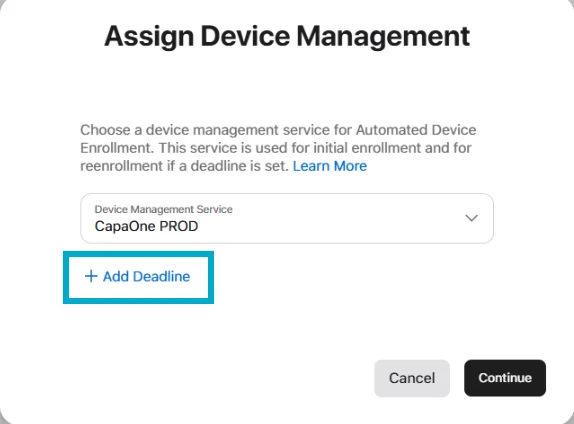
4. Set a migration deadline
- Click + Add Deadline and set an enrollment deadline
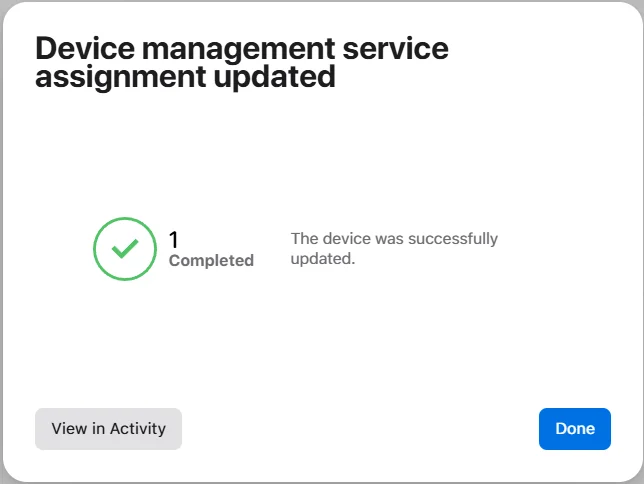
- Click Continue through the steps
Note: The deadline button is disabled if the device does not meet Apple’s migration requirements.
Apple Business Manager may take time to acknowledge new OS updates.
4. Verify Migration in CapaOne
1. Confirm DEP Synchronization
Navigate to: CapaOne Apple → Endpoints → DEP
Check that the device’s serial number appear
If the device does not automatically sync, click Synchronize.
2. Automatic Enrollment Behavior
If you have set a default DEP enrollment profile, the device will:
- Automatically receive the new enrollment request, and
- Prompt the user to start the migration
If the user declines, the device will migrate automatically at the set ABM deadline.
3. If the Device Was Previously Enrolled in CapaOne
You must manually assign an enrollment Profile
- Go to Endpoints → DEP
- Open the Action menu for the device
- Select Assign Enrollment
- Choose the desired enrollment configuration
Maintenance & Best Practices
- Validate all apps/configurations on a test device before mass migration
- Ensure all devices run iOS 16 or higher
- Monitor the DEP list in CapaOne during the migration phases
- Plan migration deadlines so users are prepared for prompts
- Always set a default DEP configuration to streamline migration