How to Enroll DEP Devices in CapaOne Mobile Manager
This guide explains how to enroll iOS devices using Apple’s Device Enrollment Program (DEP) through Apple Business Manager/Apple school manager and link them to an enrollment configuration in CapaOne Mobile Manager.
By the end, you will be able to assign DEP devices to Mobile Manager, synchronize them into the platform, link enrollment profiles, and complete supervised setup on the device.
Prerequisites
Before starting, make sure you have:
- A device already enrolled in Apple Business Manager / Apple School Manager (ABM/ASM)
- Access to CapaOne Mobile Manager
- Access to Apple Business Manager / Apple School Manager (ABM)/(ASM)
- The device is available for setup or reset
Configuration / Steps
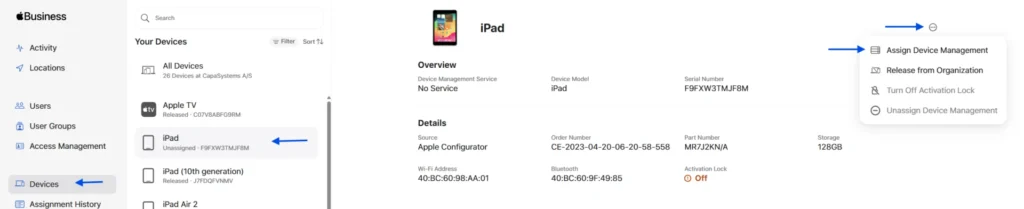
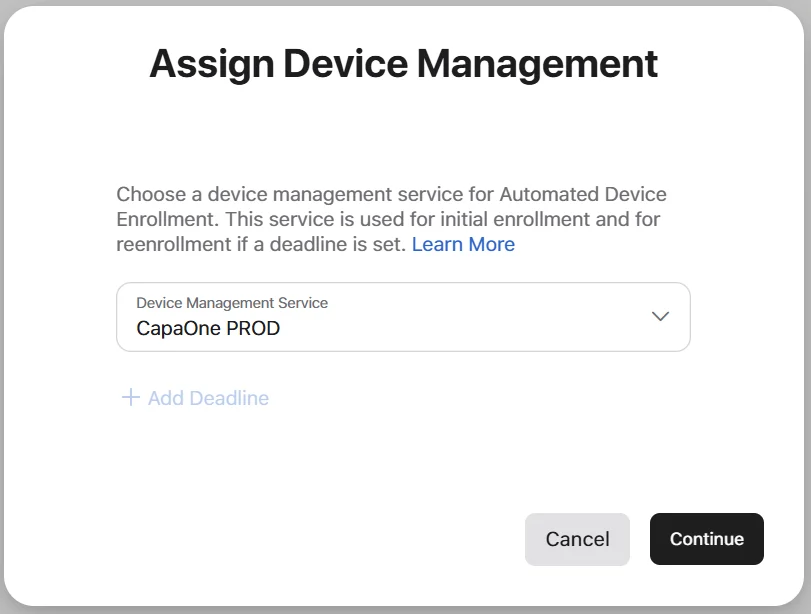
1. Assign the Device to CapaOne Mobile Manager in ABM/ASM
- Log in to Apple Business Manager.
- Select Devices from the left panel
- Locate the desired device and click the three dots in the top-right corner
4. Select Edit MDM Server and assign the device to CapaOne Mobile Manager Server.
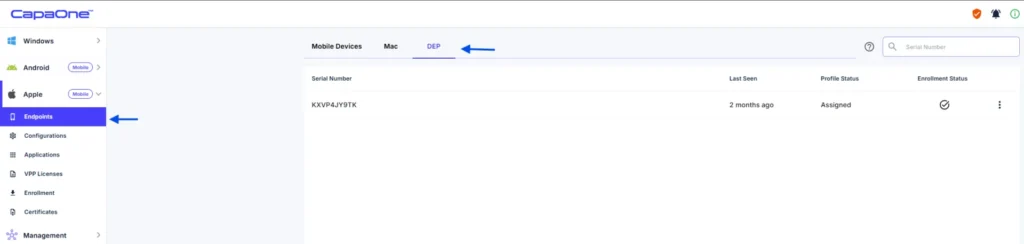
2. Synchronize DEP Devices in CapaOne
- In the CapaOne portal, open the Apple endpoint page
2. Select the DEP tab and click Synchronize (bottom-right corner)
3. If new devices is added, click Refresh.
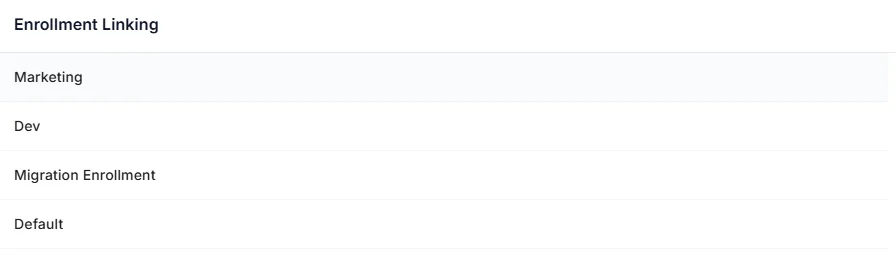
3. Link an Enrollment Configuration
- In the DEP device list, click the three dots next to the device’s serial number.
- Select Link enrollment.
3. Choose the appropriate enrollment configuration for the device.
4. The profile status should now show as Assigned.
5. Replace the Application ID with the native Samsung Settings App ID:
com.android.settings
6. Configure the usual app settings.
7. Change the app name to “Settings”.
Enrollment
4. Set Up the Device
- Start the device and select language and region.
- On the layout screen, tap Continue.
- Choose Set Up Without Another Device.
- Connect to a WiFi network.
5. Register the Device
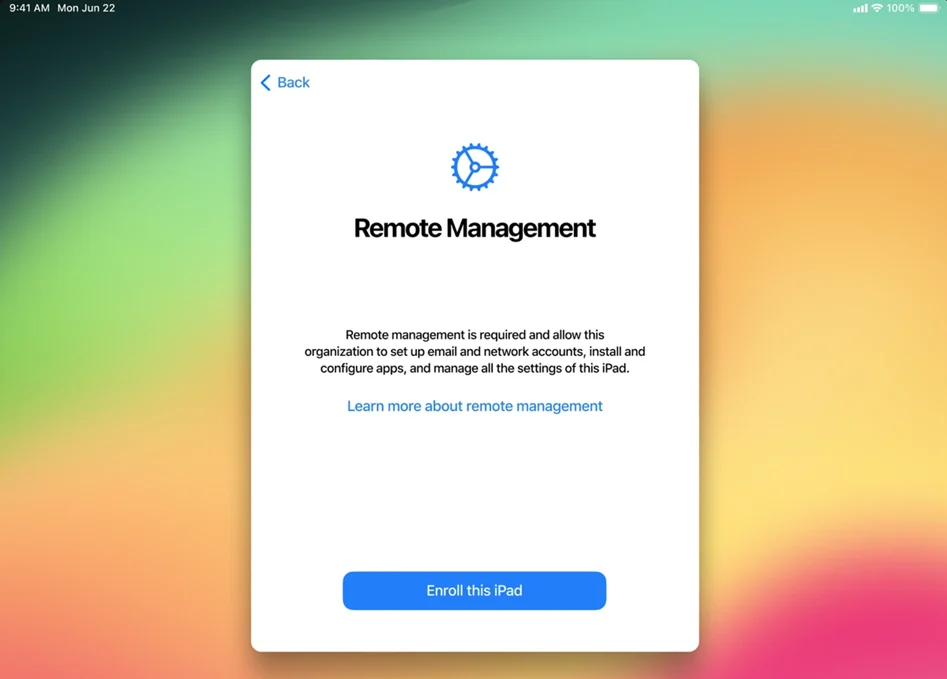
- The device will automatically download the assigned DEP configuration.
- When prompted, tap Register this iPad/iPhone.
6. Register the Device
- If Microsoft authentication is enabled in the enrollment configuration:
→ Sign in using an Azure AD–synced user. - If authentication is not enabled:
→ The device will enroll automatically and appear in Mobile Manager with the Supervised tag.
Maintenance & Best Practices
- Ensure devices are synchronized in CapaOne before linking an enrollment configuration.
- Always verify the device is assigned to the correct MDM server in ABM/ASM.
- Reset the device if enrollment does not trigger automatically.
- Use DEP for all corporate-owned devices to ensure consistent supervision.
 CapaOne