 CapaOne
This guide explains how to enable Samsung’s native Phone, Messages, and Settings apps for devices running in Kiosk Mode in CapaOne Mobile Manager.
By the end, you will be able to create Google Play app entries that point to Samsung’s native application IDs and make them available inside a Custom Launcher setup.
Prerequisites
Before proceeding, ensure:
- The device is configured in Kiosk Mode
- Custom Launcher is enabled in the Kiosk Mode Configuration
- Device Settings is enabled in the Kiosk Mode Configuration
- You have access to Managed Google Play in CapaOne
Configuration / Steps
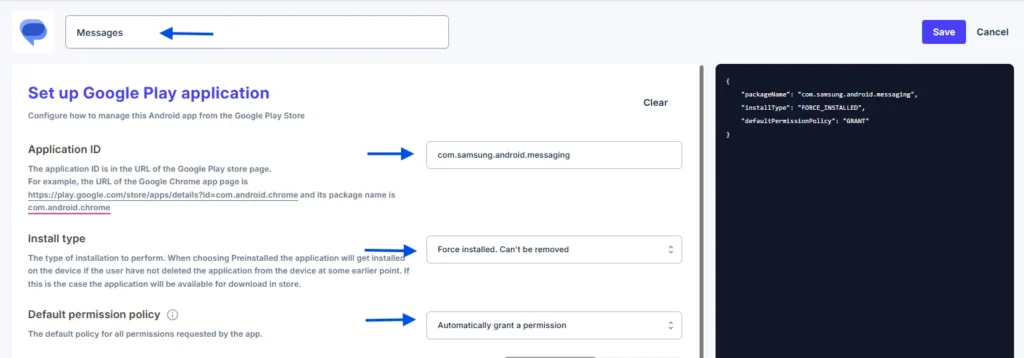
1. Create Samsung Messages (Native App)
- Create a new Google Play app in CapaOne.
- Search for Messages.
- Select Google Messages from the list.
- Replace the Application ID with the native Samsung Messages App ID:
com.samsung.android.messaging - Configure the usual app settings.
- Change the app name to “Messages”.
2. Create Samsung Phone (Native App)
- Create a new Google Play app in CapaOne.
- Search for Messages.
- Select Google Messages from the list
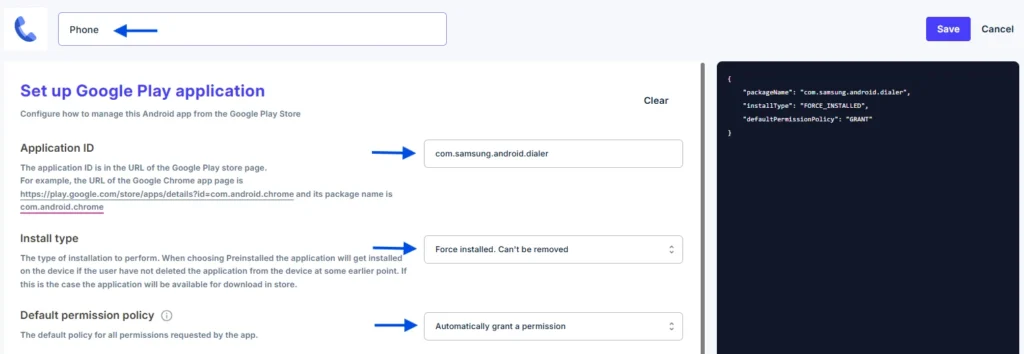
- Replace the Application ID with the native Samsung Phone App ID:
com.samsung.android.dialer - Configure the usual app settings.
- Change the app name to “Phone”.
3. Create Samsung Settings (Native App)
- Create a new Google Play app.
- Search for Settings.
- Select Quick Settings for Android from the list.
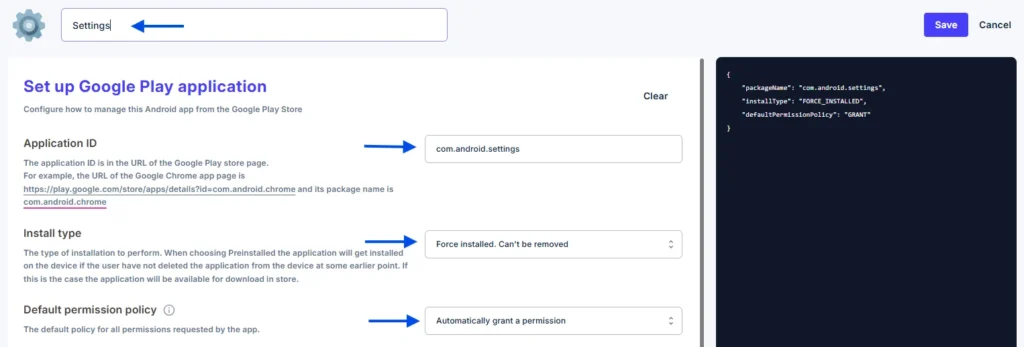
- Replace the Application ID with the native Samsung Settings App ID:
com.android.settings - Configure the usual app settings.
- Change the app name to “Settings”.
Enrollment
No additional enrollment steps are required.
After creation, the Samsung-native apps can be assigned to:
- Groups
- Individual endpoints
Devices will receive apps based on the Assigned groups or directly applied apps
Maintenance & Best Practices
- Ensure that Custom Launcher and Device Settings remain enabled for Kiosk Mode.
- Always verify that Application IDs are correct before saving.
- Test new Kiosk app setups on a single device before rolling out widely.
- Rename the app to the native name (Phone, Messages, Settings) for clarity in the launcher.